Quick Start
Go from zero to a safe first rollout in about 10 minutes. You will set up one flag, use it in code, target a small audience, and learn how to monitor and control the rollout with confidence.
1. Create a workspace and project
When you sign up, Supaship creates a default workspace and project for you. You can start there, or create a dedicated workspace/project for your team.
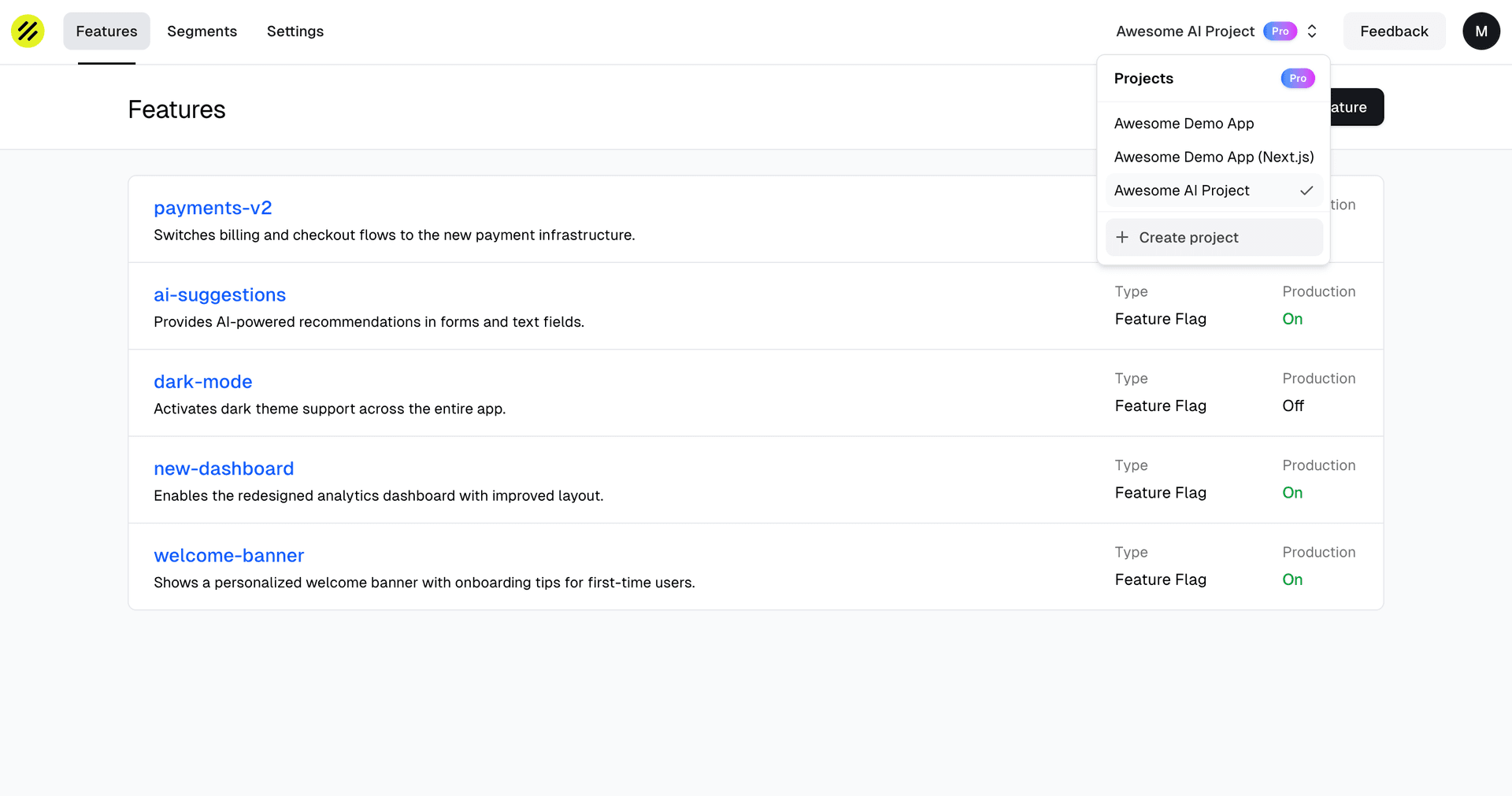
Each project comes with two environments by default:
developmentproduction
Add extra environments like staging or uat to match your real
release process.
2. Create your first feature flag
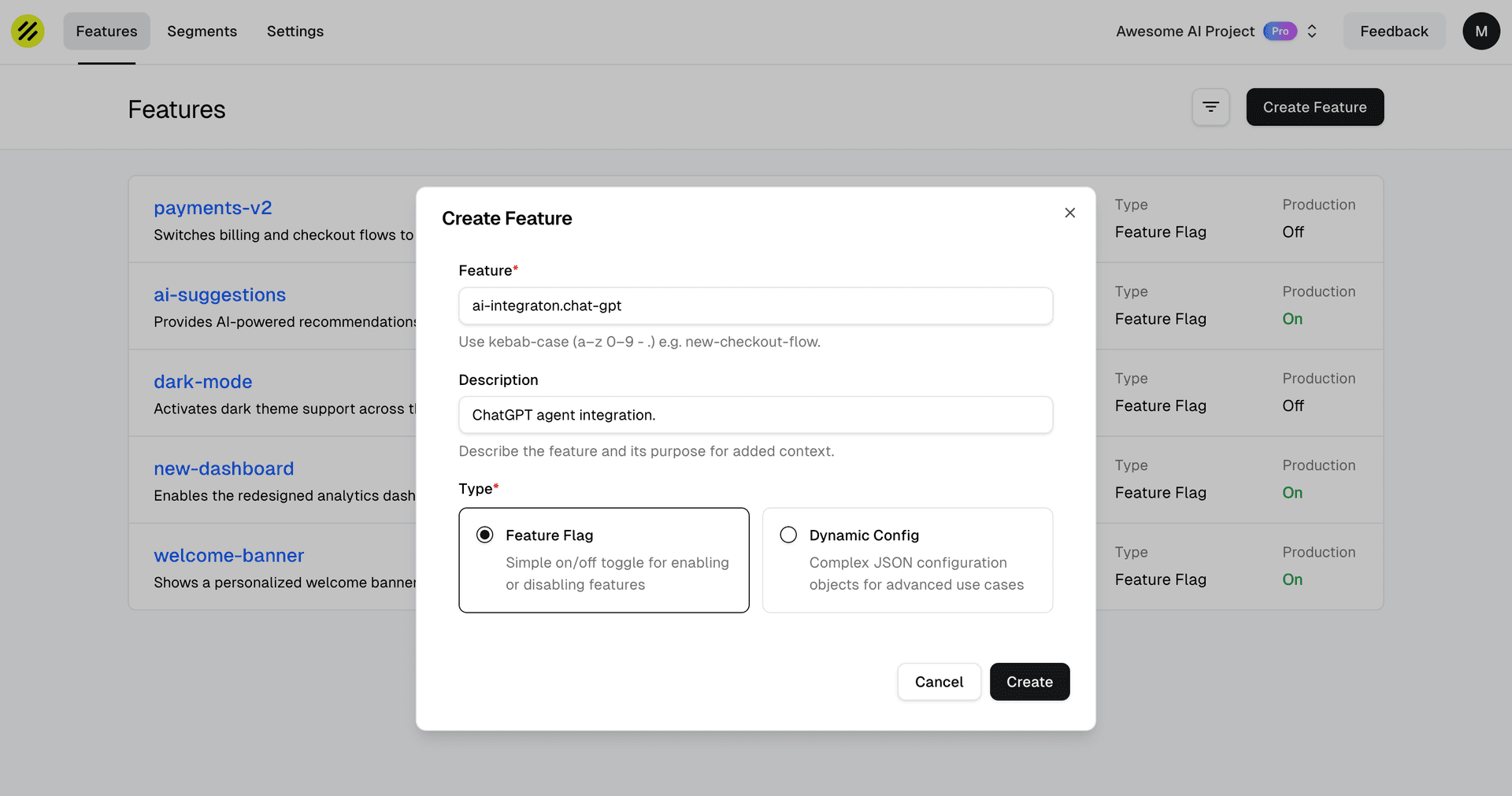
Go to Features and create a new feature flag.
A feature key is the unique name your application reads at runtime. It can be a boolean feature flag (on/off) or an AI config (JSON object).
- Good examples:
new-dashboard,checkout.new-flow,billing.tax-v2 - Avoid vague keys:
test-flag,feature-123 - Prefer behavior-oriented names over technical implementation names
3. Use the feature flag in your application
Open the feature details page and find Code Samples menu in the sidebar. Pick the SDK for your framework/language of your choice, then paste the sample into your app.
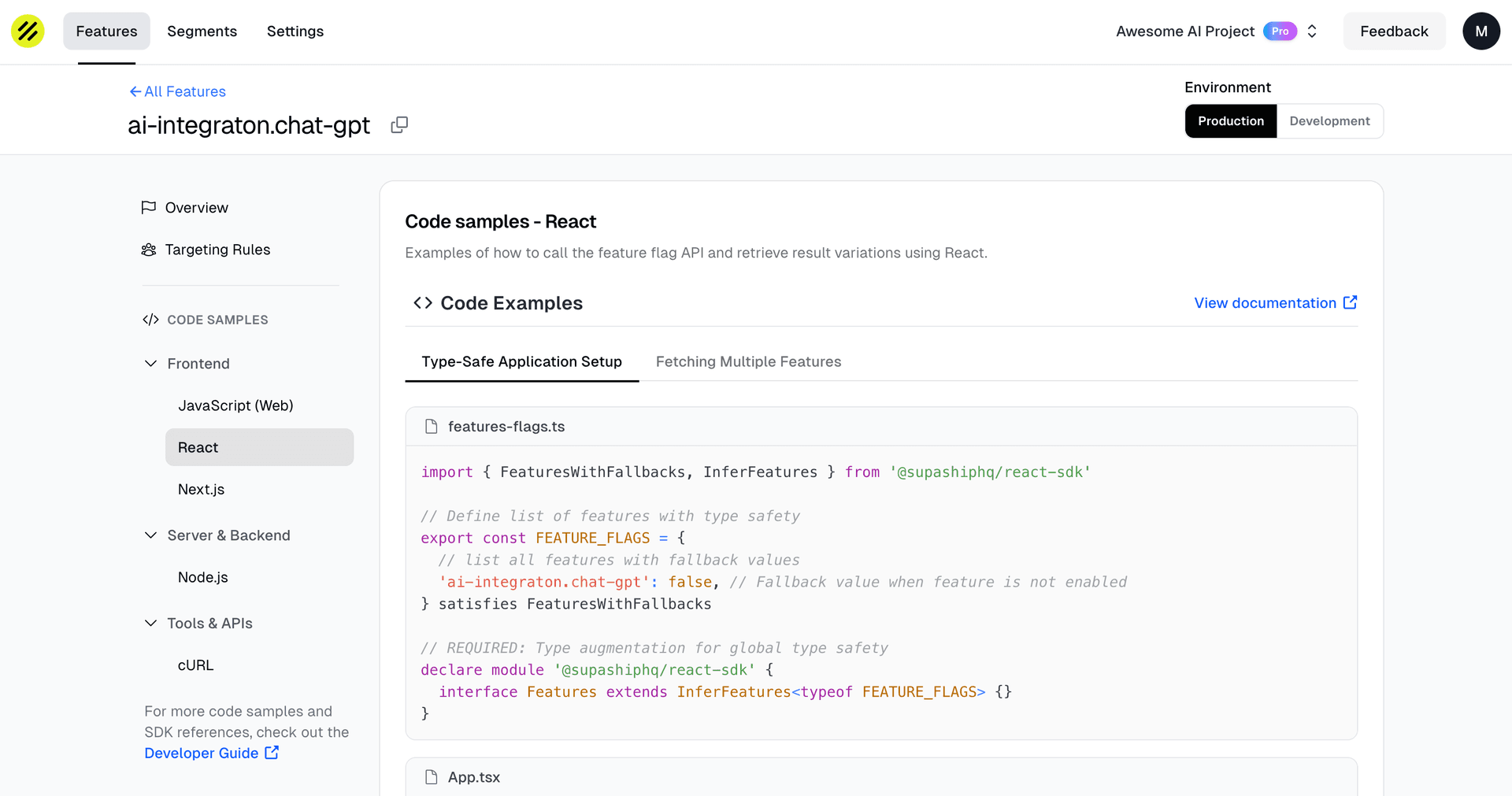
Note: every code sample is ready to be copied and pasted into your application as it includes right SDK key and environment slug.
Sample code for React
import { useFeature } from '@supashiphq/react-sdk'

export function DashboardGate() {
  const { feature: isEnabled, isLoading } = useFeature('new-dashboard')

  if (isLoading) return <div>Loading...</div>

  return <div>{isEnabled ? <NewDashboard /> : <OldDashboard />}</div>
}
Find more code samples for other frameworks and languages in the Developer Guide.
4. Add your first targeting rule
Open the feature details page, go to Targeting Rules, and choose your environment, e.g. production in the
environment picker on the top-right corner of the page. It allows you to configure targeting rules for your feature flag in a specific environment.
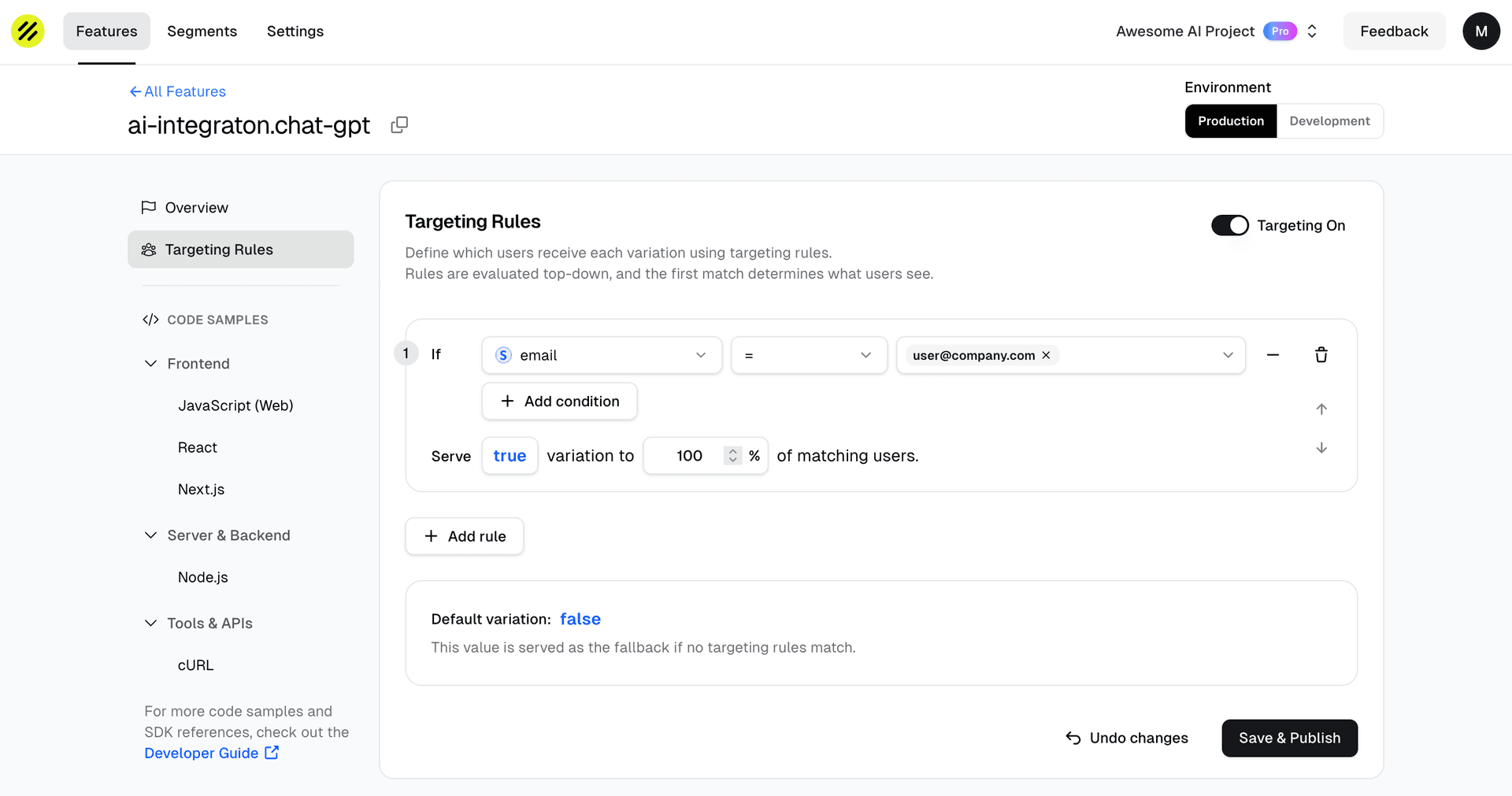
Start with one simple rule:
- attribute:
email - operator:
is one of - value:
user@company.com
Test the expectations
| user | context | expected result |
|---|---|---|
| targeted user | email: user@company.com | true |
| non-targeted user | email: user@gmail.com | false |
For more information about targeting rules, see Targeting Rules.
5. Monitor your feature launch
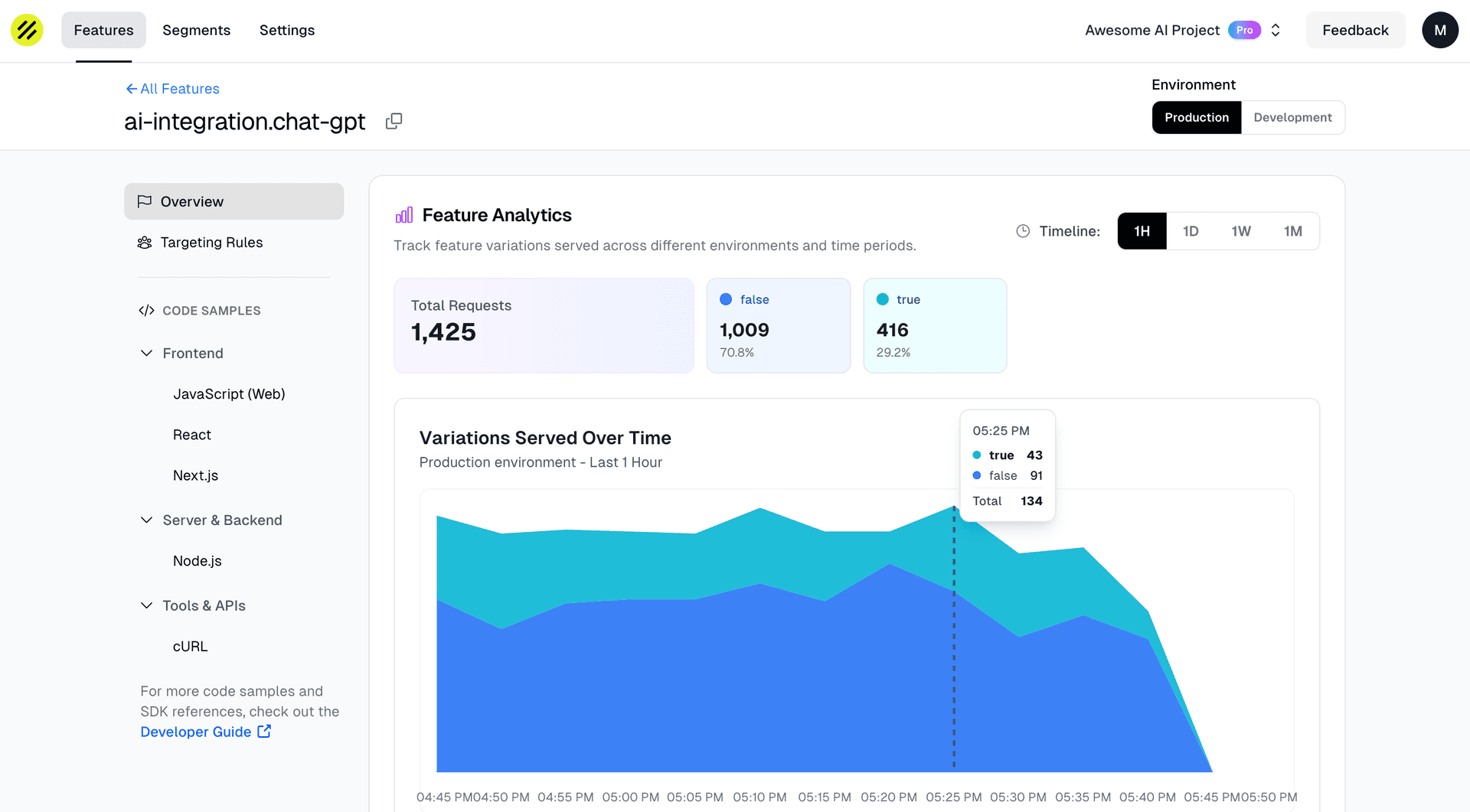
Go to the Overview tab in feature details page to monitor usage and rollout behavior.